
In today’s fast-paced digital world, smartphones have become indispensable. We rely on them for communication, entertainment, productivity, and even health tracking. However, one of the most common problems smartphone users face is battery drain. Many users find themselves constantly reaching for a charger before the day ends. The good news is that by using smart display settings to save battery, you can extend your phone’s battery life without compromising on the user experience.
In this comprehensive guide, we will explore the concept of smart display settings, why they matter, and practical ways to optimize your device for longer battery life. Whether you are an Android or iOS user, these tips and tricks will help you make the most of your smartphone’s power efficiency.
What Are Smart Display Settings?
Smart display settings are configurations on your smartphone that automatically adjust screen behavior based on your usage patterns, environment, or preferences. These settings include features like adaptive brightness, dark mode, screen timeout, and refresh rate optimization. By intelligently managing how your display consumes power, you can save battery while maintaining a smooth and comfortable viewing experience.
Unlike manual adjustments, smart display settings work dynamically. For example, adaptive brightness can dim your screen in a low-light environment or brighten it in sunlight. Similarly, adjusting your screen refresh rate according to the app you are using ensures the display uses energy efficiently.
Why Smart Display Settings Are Crucial for Battery Life
The screen is one of the most power-hungry components of any smartphone. According to studies, display usage can consume up to 40-50% of a phone’s battery. By optimizing display settings intelligently, you can reduce unnecessary power consumption and extend your device’s uptime.
Here are the key reasons why using smart display settings to save battery is essential:
- Prolonged Battery Life: Efficient display settings prevent rapid battery drain, allowing your phone to last longer between charges.
- Reduced Heat Generation: High brightness and high refresh rates increase device temperature, which can degrade battery health over time. Smart display settings minimize this effect.
- Enhanced User Comfort: Features like dark mode not only save battery but also reduce eye strain, especially during night usage.
- Eco-Friendly: Using less battery indirectly reduces energy consumption, contributing to a smaller carbon footprint.
Key Smart Display Settings to Save Battery
Now that we understand the importance of smart display settings, let’s dive into the most effective options available on modern smartphones.
1. Adaptive Brightness
Adaptive brightness is a feature that automatically adjusts your screen’s brightness based on ambient lighting conditions. It uses the device’s light sensor to determine the optimal brightness for your environment.
How it saves battery:
- Prevents the screen from being unnecessarily bright in low-light situations.
- Reduces power usage when using apps with predominantly dark interfaces.
Tip: On Android, go to Settings > Display > Adaptive Brightness, and enable it. On iOS, go to Settings > Accessibility > Display & Text Size > Auto-Brightness.
2. Dark Mode
Dark mode changes your interface to use darker backgrounds instead of bright white screens. This is especially useful on OLED and AMOLED screens, where black pixels are actually turned off.
How it saves battery:
- Reduces the energy required to light up each pixel on OLED screens.
- Lowers overall screen brightness without affecting readability.
Tip: Enable dark mode system-wide or for specific apps that support it, such as social media and messaging apps.
3. Screen Timeout and Sleep Settings
The screen timeout determines how long your phone’s display stays on when not in use. Longer timeouts can unnecessarily drain your battery.
How it saves battery:
- Reduces wasted energy from idle screen usage.
- Helps prevent accidental touches when the screen is left active.
Tip: Set a screen timeout of 30 seconds to 1 minute for optimal battery conservation. Adjust based on your usage habits.
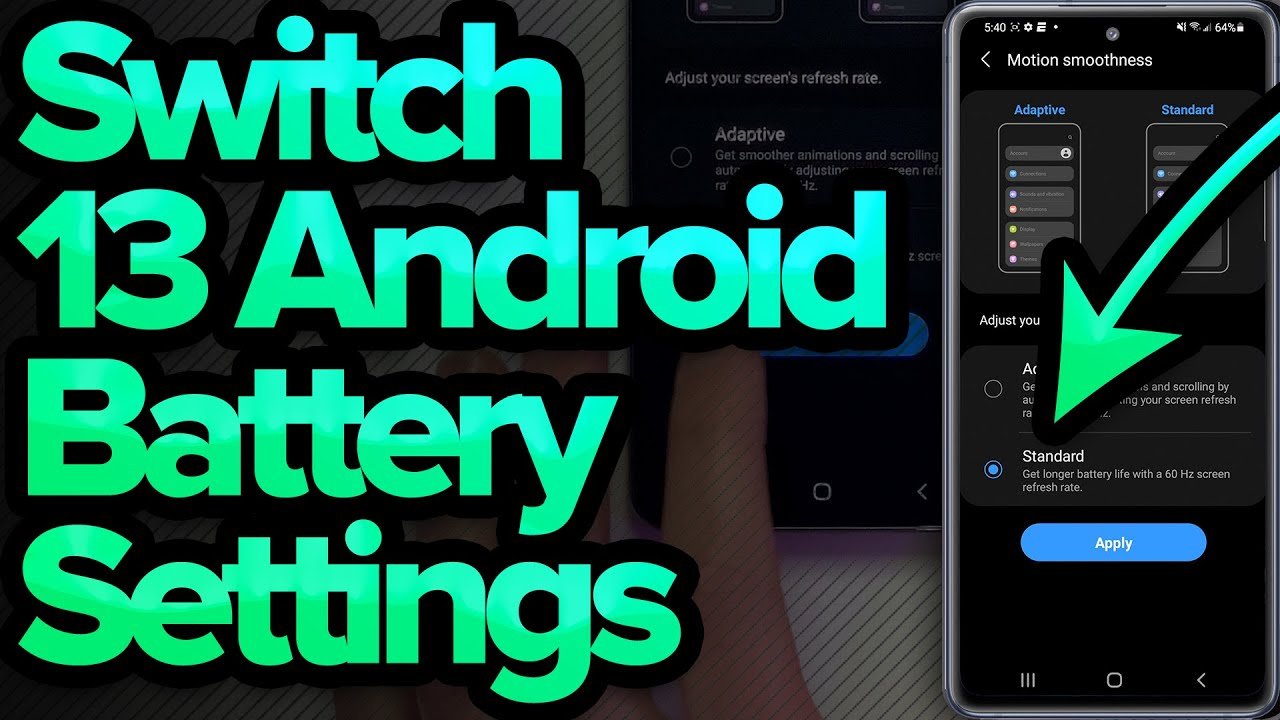
4. Reduce Screen Refresh Rate
High refresh rate displays (90Hz, 120Hz, or higher) provide smoother animations but consume more power. Using a lower refresh rate can significantly extend battery life.
How it saves battery:
- Less frequent screen updates reduce energy consumption.
- Ideal for tasks like reading, browsing, or messaging, where high refresh rates are unnecessary.
Tip: On Android, navigate to Settings > Display > Refresh Rate, and select 60Hz or adaptive mode. On iOS, enable ProMotion auto-adjustment if available.
5. Adjust Display Resolution
Some smartphones allow you to lower the screen resolution to save battery. Higher resolutions look sharper but consume more power.
How it saves battery:
- Lower pixel density requires less energy to render images and text.
- Useful for daily tasks where ultra-high resolution isn’t essential.
Tip: Check Settings > Display > Screen Resolution and choose a lower setting like Full HD+ instead of QHD+.
6. Use Battery Saver Modes
Most smartphones come with battery saver modes that automatically adjust display settings to maximize efficiency.
How it saves battery:
- Reduces brightness, disables adaptive features, and limits background activity.
- Ensures longer battery life during heavy usage or travel.
Tip: On Android, go to Settings > Battery > Battery Saver. On iOS, enable Low Power Mode in Settings > Battery.
7. Limit Always-On Display
The always-on display (AOD) shows time, notifications, and other information even when your phone is locked. While convenient, it consumes power continuously.
How it saves battery:
- Disabling AOD prevents unnecessary battery drain.
- Alternatively, reduce brightness or set it to show only when picked up.
Tip: Go to Settings > Lock Screen > Always-On Display and customize it for minimal usage.
Combining Smart Display Settings for Maximum Efficiency
Individually, these settings can help save battery, but combining them strategically is even more effective. Here’s an example setup for Android and iOS users:
| Setting | Recommended Configuration |
|---|---|
| Adaptive Brightness | Enabled |
| Dark Mode | Enabled system-wide |
| Screen Timeout | 30–60 seconds |
| Refresh Rate | Adaptive or 60Hz |
| Display Resolution | Medium/Full HD+ |
| Battery Saver | Auto-enable at 20% |
| Always-On Display | Disabled or pick-up only |
This combination ensures that your phone consumes the least power possible without compromising usability.
Common Myths About Display and Battery Usage
Many users believe in certain myths regarding display usage and battery life. Let’s debunk a few:
- Myth 1: Lowering screen brightness to the lowest level always saves the most battery.
Fact: Extremely low brightness may cause your device to increase power elsewhere, like backlight stabilization. Smart brightness adjustment is better. - Myth 2: Dark mode doesn’t save battery.
Fact: On OLED/AMOLED screens, dark mode can save up to 30% battery. - Myth 3: Turning off adaptive brightness saves more battery.
Fact: Adaptive brightness optimizes power usage in real-time, which is usually more efficient than a static brightness level.
Tips to Monitor and Improve Battery Efficiency
Even with smart display settings, monitoring battery usage is essential. Here are some practical tips:
- Check Battery Usage: Most smartphones have a battery usage chart showing which apps consume the most power. Adjust settings or usage accordingly.
- Update Apps Regularly: Outdated apps can use more resources, draining your battery faster.
- Use Dark Wallpapers: Darker backgrounds reduce pixel power consumption on OLED screens.
- Avoid Extreme Temperatures: High heat or extreme cold can affect battery efficiency.
- Enable Auto-Brightness Calibration: Regular calibration ensures optimal adaptive brightness performance.
Conclusion
Extending your smartphone’s battery life doesn’t have to be complicated. By using smart display settings to save battery, you can enjoy longer device uptime, reduce heat, and improve your overall mobile experience. Features like adaptive brightness, dark mode, screen timeout optimization, refresh rate control, and battery saver modes work together to minimize power consumption without affecting usability.
Remember, the key is smart management rather than constant manual adjustment. With the right combination of settings, your smartphone can easily last all day — even with heavy usage.
Start optimizing your display today and experience the convenience of a longer-lasting battery. Your phone, your day, and your productivity will thank you.